


What it does
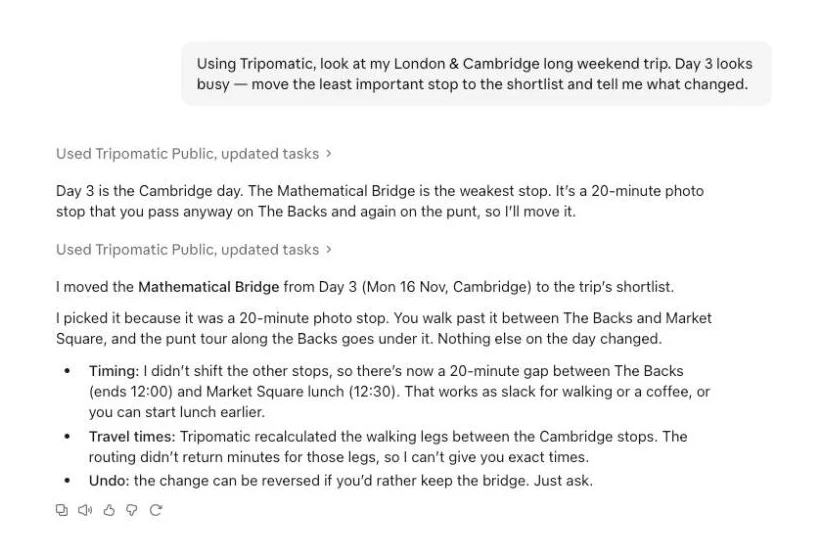
Tripomatic's MCP server connects your AI assistant to your Tripomatic account. Once connected, it can look at your trips and change them for you, in a normal conversation. It works with the same places and itineraries as the Tripomatic app.
- Read your trips: what is planned for each day, where you are staying, what is open.
- Find places and destinations, and see the travel times between your stops.
- Add, move and remove places, notes and days, and set where you stay.
- Check weather, travel alerts and public holidays for your dates.
- Create a PDF of your trip with a Premium plan.
Every change comes with a link that opens the trip in Tripomatic, and can be undone.
Tripomatic also has its own AI assistant, built into every trip. See the AI Trip Planner →
Set up
You need a Tripomatic account. If you do not have one yet, you can create it while you connect. Choose your assistant to see its steps. The address is always the same.
Claude (web, desktop and mobile)
Add Tripomatic as a custom connector:
- Open Claude and go to Settings, then Connectors.
- Choose Add custom connector.
- Name it Tripomatic and paste the address below.
- Choose Add, then Connect, and sign in to Tripomatic to approve access.
Tripomatic address
https://mcp.tripomatic.com/mcp
Claude Code
Run this command in your terminal, then type /mcp inside Claude Code and choose Tripomatic to sign in.
claude mcp add --transport http tripomatic https://mcp.tripomatic.com/mcp
ChatGPT
Adding your own MCP server to ChatGPT depends on your ChatGPT plan and, in a workspace, on your admin's settings. If you do not see the option, it is not available to you yet.
- Open chatgpt.com/plugins and select the plus button.
- Choose Add custom MCP server.
- Name it Tripomatic and paste the address below, including the /mcp at the end.
- Choose OAuth for authentication if asked, read the risk warning, select I understand and want to continue, then choose Create as a plugin.
- Sign in to Tripomatic to approve access. In a new chat, type @ and choose Tripomatic.
Tripomatic address
https://mcp.tripomatic.com/mcp
Gemini
Gemini lets you add your own connection only in some regions and for some accounts (currently personal accounts in the United States, in English). If you do not see the option, it is not available to you yet.
- Open Gemini and go to Settings, then Connected apps.
- Choose to add a custom app and paste the address below.
- Sign in to Tripomatic to approve access.
Tripomatic address
https://mcp.tripomatic.com/mcp
Grok
Custom connectors work in Grok on grok.com. On Grok Business and Enterprise plans, a team admin may need to provide the connector first.
- Open grok.com/connectors.
- Choose New Connector, then Custom.
- Paste the address below.
- Sign in to Tripomatic to approve access.
Tripomatic address
https://mcp.tripomatic.com/mcp
Any other assistant
If your assistant supports adding a connector or an MCP server by address, use this one. Look for a setting named Connectors, Connected apps, Plugins, Tools or Integrations.
- Open the assistant's settings and find where you add a connector by address.
- Paste the address below.
- Sign in to Tripomatic to approve access.
Tripomatic address
https://mcp.tripomatic.com/mcp
Try asking
Copy a prompt and paste it into your assistant after you have connected.
What's on my Lisbon trip for Saturday, and is anything closed that day?
Add Belém Tower and a lunch spot nearby to day 2 of my Lisbon trip, then tell me the travel times.
Move day 3 to day 4, and undo it if it clashes with the dinner reservation.
Brief me on my Rome trip next week: weather, holidays, anything I should know.
Create a 4-day Vienna trip with the main sights, a coffee house each day and one day trip.
What your assistant can see and change
It can see
- Your trips and the trips shared with you: days, places, notes, times and where you stay.
- Your favourite places and the files you have attached to trips.
- Your plan and how much of your free-plan limits you have used.
- People you share a trip with appear by display name only, never with contact details.
It can change
- Add, move, reorder and remove places, notes and days in your trips, and set where you stay.
- Create a new trip, and change a trip's title and dates.
- Add and remove favourite places, and save a file to your account.
- Create an export of a trip, if your plan includes it.
It cannot
- Delete a trip, share a trip or invite anyone.
- Buy anything, or see your payment details.
- Change a trip you only have view access to.
Undo
Changes made by an assistant take effect immediately and are recorded in the trip's history. Ask the assistant to undo a change, or restore it from the trip's history.
Changes can be undone from the trip's history for 180 days, unless the same days changed since. Deleting an attachment cannot be undone.
Privacy
We never see your conversations with the assistant. Your assistant's provider receives the trip data it reads, under its own terms and privacy policy, and may process it outside the EU.
Tripomatic logs which actions were requested, their result and timing, for security and to keep the service running. We keep these logs for up to 30 days in raw form and 13 months in pseudonymous form.
Plans
Connecting an assistant is free on every plan. What it can do follows your Tripomatic plan. If something is not included in your plan, the assistant tells you, and nothing is changed.
Free: plan trips within the free-plan limits below.
Plans are bought in the Tripomatic app or on the web, never in the chat. Current plans and prices are shown there.
Free-plan limits
These are the free-plan limits, the same as in the app.
- 5 unlocked trip days per calendar month across your own trips. Later days are locked, never deleted.
- 25 places and stays per trip, including the shortlist.
- Some lookups, such as route times, have a daily allowance. When it runs out, the assistant is told and tries again the next day.
Acceptable use
The connection is for your own personal use: planning and managing your own trips. Use through an assistant is covered by the AI Assistants section of our Terms of Use.
- Fair-use policy and rate limits apply, and may be adjusted to keep Tripomatic reliable for everyone.
- Automated bulk copying or extraction of Tripomatic content is not allowed.
- You are responsible for what your assistant does on your instructions, and we may suspend a connection that is abused.
Disconnect
You can see every assistant connected to your account and disconnect any of them at any time.
Access ends within minutes. You can also remove Tripomatic in the assistant's own settings. Deleting your Tripomatic account disconnects all assistants.